Side-by-side and unified
Aligned A/B panes with character-level highlights, or a compact unified view. Switch instantly, no re-scan.
Windows desktop app · v1.0.17
Socha Diff compares two folders on your PC and shows what actually changed: side-by-side or unified diffs, with whitespace noise filtered out. It runs entirely on your machine.
App download about 5.7 MB · Windows 10/11 x64 · updates itself automatically · needs 3 free prerequisites
 Socha Diff
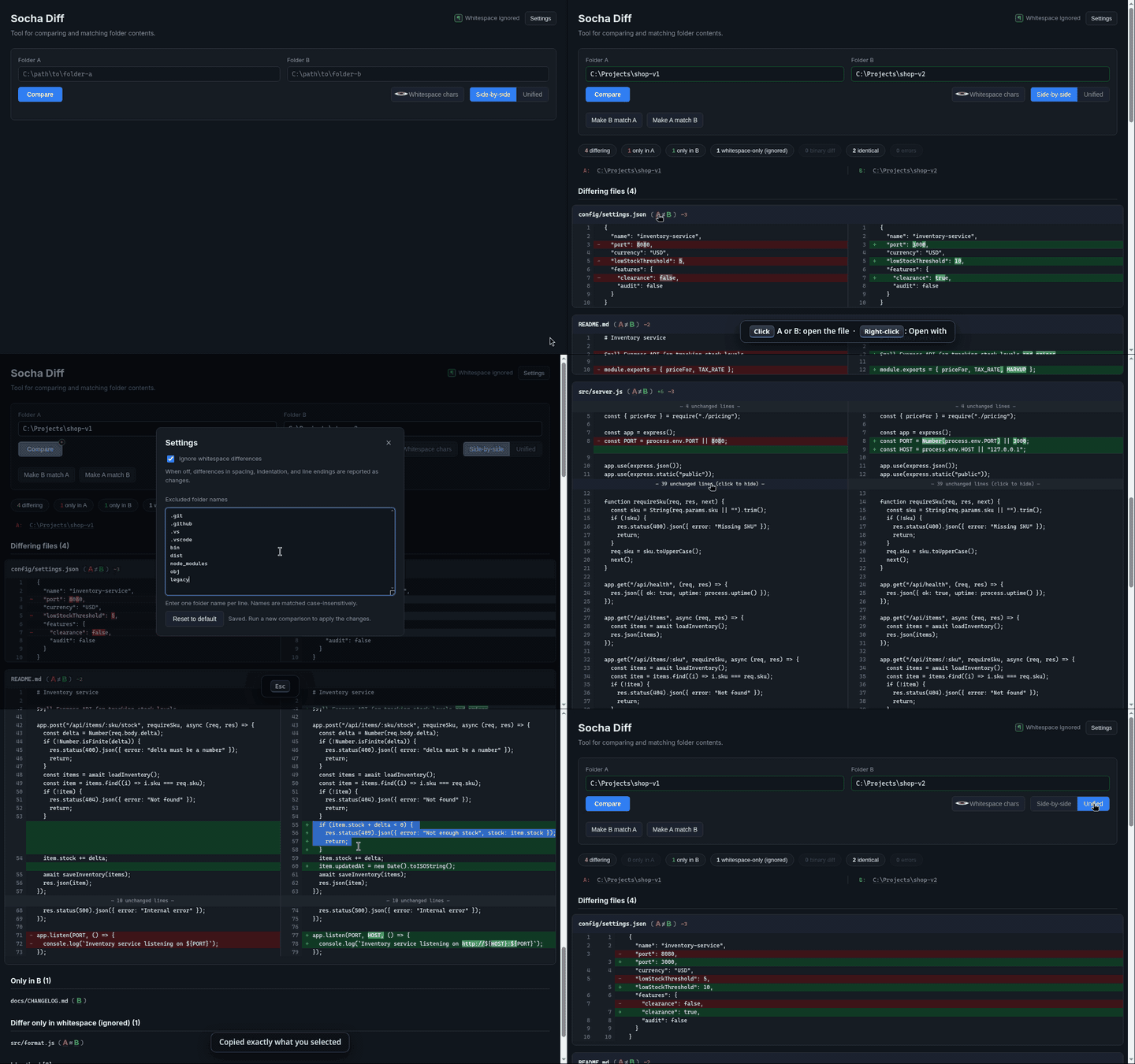
A real, unedited recording: two folders in, Compare, the A/B file links, Ctrl + S to exclude a folder, expand hidden lines, select and Copy, unified view. GIF version · more demos in the guide
Every non-whitespace change, categorized and easy to act on.
Aligned A/B panes with character-level highlights, or a compact unified view. Switch instantly, no re-scan.
Differing, only-in-A, only-in-B, whitespace-only, binary and identical files, each one click to filter. Make A or B match when you are ready.
Long unchanged stretches fold into a marker. Click to reveal the lines in place and click again to fold them back.
Drag across lines within one side and copy exactly what you selected, including each line's own CRLF or LF when you select the newline.
Turn on whitespace-aware mode to see CRLF vs LF, tabs and spaces as visible marks, with changed line endings highlighted.
Point it at any two folders on your PC or network. Nothing is uploaded: the comparison engine runs privately on 127.0.0.1.
Shortcuts that save clicks. The full guide explains every button, box and shortcut in the app.
Click A or B after a file name to open that copy in its default app. Right-click opens the Windows Open with picker (Just once or Always).
Click the A: or B: folder path above the results to open that folder in Windows Explorer.
Opens Settings from anywhere: ignore whitespace, excluded folders. Changes save automatically; Esc closes it.
List folder names, one per line, to skip them at any depth. Matching ignores case; names only, no paths or wildcards.
Every subfolder is scanned and files are matched by relative path. Windows folders ignore letter case, so Readme.md and README.md are paired; only when both folders are case-sensitive must names match exactly. Unmatched files are listed as only in A or only in B.
Install does nothing, or only downloads a file? Chrome and Firefox do not launch ClickOnce links, and Edge only does when its ClickOnce support is on. Use setup.exe instead: it also offers to install a missing .NET 10 Desktop Runtime or WebView2 Runtime for you.
Version 1.0.17 · Windows 10/11 x64
The Socha Diff download itself is small (about 5.7 MB, measured from the published app) because it does not carry these three runtimes. Install each one once, and every Socha Diff update after that stays small. If you already have them, skip straight to Install.
Why: Socha Diff's window is a .NET 10 WPF app. Without the runtime, Windows shows ".NET is required to run this application" with a download link.
dotnet --list-runtimesMicrosoft.WindowsDesktop.App 10.0.x; "not recognized" means .NET is not installed.
Why: Socha Diff draws its interface with WebView2, the Edge engine for apps. It ships with Windows 11 and most up-to-date Windows 10 PCs.
Get-ItemProperty 'HKLM:\SOFTWARE\WOW6432Node\Microsoft\EdgeUpdate\Clients\{F3017226-FE2A-4295-8BDF-00C3A9A7E4C5}' pvWhy: the comparison engine is a small Node.js server that Socha Diff starts privately on 127.0.0.1. It finds Node on PATH, in Program Files, or via nvm, fnm or Volta.
node --versionv20.0.0 or newer. The current LTS (v24) is recommended.
%LOCALAPPDATA%\SochaDiff and survive updates.